
Why You Shouldn’t Hardcode Values in Software Engineering

Hardcoding values—embedding fixed data directly into your code—might seem convenient at first, but it’s a shortcut that often leads to long-term pain. Here’s why software engineers should avoid it:

1. Poor Maintainability

When values are hardcoded, changing them requires digging through the codebase. This increases the risk of missing instances or introducing bugs. Instead, using configuration files, environment variables, or constants makes updates easier and safer.

2. Reduced Flexibility

Hardcoded values limit your ability to adapt to different environments (e.g., dev, QA, prod). For example, a hardcoded database connection string or API key means you can’t easily switch contexts without modifying the code itself.

3. Testing Challenges

Unit tests and integration tests often require different inputs. Hardcoded values make it harder to inject test data, leading to brittle or less meaningful tests.

4. Security Risks

Embedding sensitive information like passwords or tokens directly in code can expose them to version control systems or unauthorized access. Externalizing secrets to secure vaults or environment variables is a safer approach.

5. Violates DRY Principle

Hardcoding often leads to duplication. If the same value is used in multiple places, and it changes, you’ll need to update it everywhere—violating the “Don’t Repeat Yourself” principle.


In summary, hardcoding values might save time today, but it costs you tomorrow in maintainability, flexibility, and security. Embrace configuration, constants, and dependency injection to build robust, scalable software.
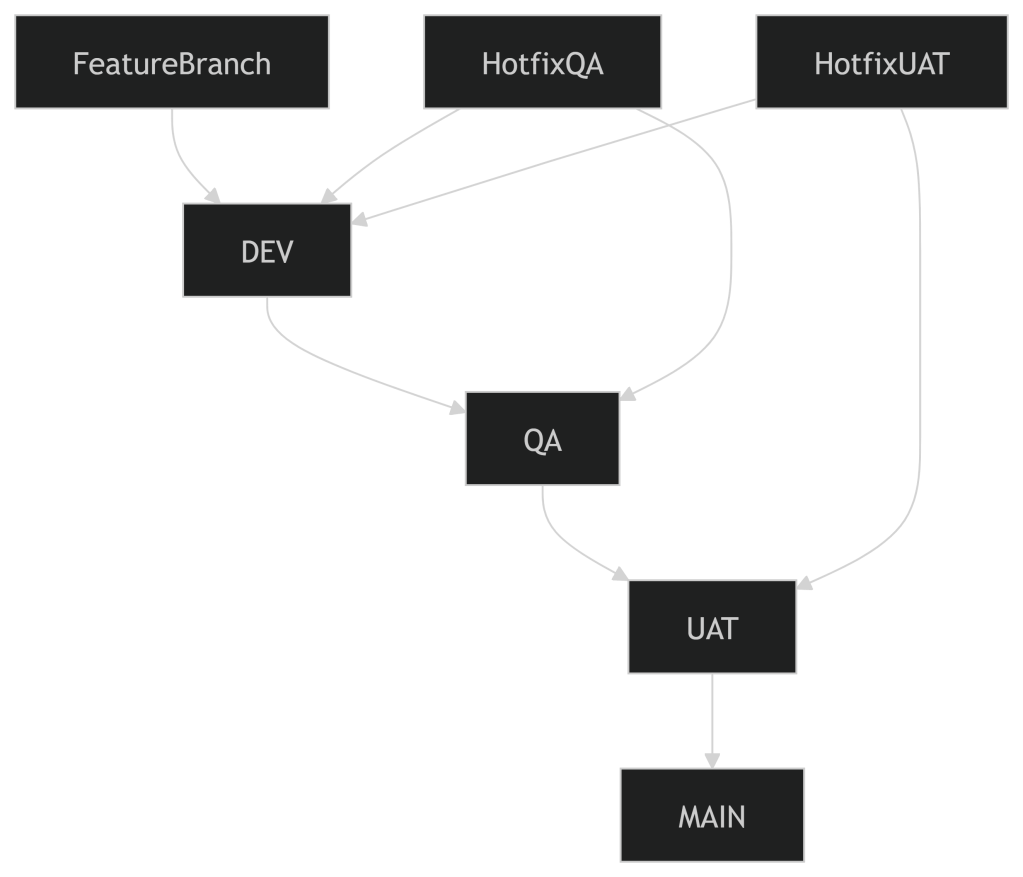
Effective Workflow Management in Git Branching

🧩 Branch Roles & Responsibilities

1. DEV Branch

  • Purpose: Active development, feature integration, and bug fixes.
  • Best Practices:
    • Developers work in feature branches off DEV.
    • Use pull requests with code reviews before merging.
    • Keep DEV stable enough for integration testing.
    • Rebase or merge MAIN into DEV regularly to stay up-to-date.

2. QA Branch

  • Purpose: Integration testing and bug fixing in a controlled environment.
  • Best Practices:
    • QA is updated from DEV when a sprint or feature set is ready.
    • Bug fixes found in QA should be made in hotfix branches, then merged into both QA and DEV.
    • Avoid direct commits to QA unless absolutely necessary.
    • Tag builds for traceability.

3. UAT Branch

  • Purpose: Final validation by business stakeholders.
  • Best Practices:
    • UAT is updated from QA after successful QA testing.
    • Only critical fixes should be allowed here, ideally via hotfix branches.
    • Keep UAT clean and stable for business sign-off.

4. MAIN (or PROD) Branch

  • Purpose: Production-ready code.
  • Best Practices:
    • Only merge into MAIN from UAT after approval.
    • Use release tags and maintain a changelog.
    • Protect MAIN with branch policies (e.g., no direct commits, required reviews).
    • Consider using release branches if multiple versions are supported.

✅ Additional Tips

  • Automation: Use CI/CD pipelines to automate testing and deployments between branches.
  • Branch Naming: Use consistent naming like feature/loginhotfix/qa-bug-123release/v1.2.0.
  • Documentation: Maintain a branching policy document for your team.
  • Communication: Ensure everyone understands the flow and responsibilities.

Blazor Component Best Practices

In Blazor, components are fundamental building blocks of a Blazor application, and they can be nested or composed to build complex UIs. When dealing with loading and refreshing components from other components, there are several best practices to follow to ensure a smooth user experience and maintainability.

1. Use Component Parameters and Data Binding

  • Pass data between parent and child components via parameters ([Parameter] attribute) and handle changes efficiently.
  • Use two-way data binding (@bind) to reflect changes in both the parent and child components.

Example:

<!-- Parent Component -->
<ChildComponent Value="parentValue" ValueChanged="@OnValueChanged"></ChildComponent>

@code {
    private string parentValue;

    private void OnValueChanged(string newValue)
    {
        parentValue = newValue;
        // Handle other logic when the value changes
    }
}

In the child component:

@code {
    [Parameter] public string Value { get; set; }
    [Parameter] public EventCallback<string> ValueChanged { get; set; }

    private void UpdateValue(string newValue)
    {
        ValueChanged.InvokeAsync(newValue);
    }
}


2. Component Re-rendering with StateHasChanged()

  • Blazor automatically re-renders components when their parameters change or the underlying data changes. However, if you manually update data in a non-UI event (like in a service or background task), you may need to trigger a re-render with StateHasChanged().
  • Call StateHasChanged() to force the UI to refresh when data updates are not automatically reflected.

Example:

@code {
    private async Task RefreshData()
    {
        // Fetch new data
        StateHasChanged();  // Triggers re-render
    }
}

3. Event Callbacks to Notify Parent Components

  • Use EventCallback to notify a parent component when a child component’s state changes. This allows the parent component to react to updates and potentially refresh itself or other sibling components.

Example:

@code {
    [Parameter] public EventCallback OnChildStateChanged { get; set; }

    private void NotifyParent()
    {
        OnChildStateChanged.InvokeAsync();
    }
}

4. ShouldRender() for Optimized Rendering

  • Override the ShouldRender() method in your components to optimize performance. This method determines whether Blazor should re-render the component. If you know the component does not need to be re-rendered, return false to avoid unnecessary UI updates.

Example:

protected override bool ShouldRender()
{
    // Only re-render if specific conditions are met
    return someCondition;
}

5. Use Dependency Injection for Shared Data

  • Use Blazor’s built-in dependency injection (DI) to manage shared state or services. This is particularly useful for loading data that multiple components need to access or when triggering refreshes across components.

Example:

@inject MyDataService DataService

@code {
    private List<Data> dataList;

    protected override async Task OnInitializedAsync()
    {
        dataList = await DataService.GetDataAsync();
    }
}

6. InvokeAsync for State Updates from Non-UI Threads

  • If you’re updating component state from a background thread (such as from an async method or service), use InvokeAsync() to ensure state changes are marshaled onto the UI thread before calling StateHasChanged().

Example:

@code {
    private async Task UpdateDataAsync()
    {
        await InvokeAsync(() =>
        {
            // Update state and re-render
            StateHasChanged();
        });
    }
}

7. Use CascadingParameter for Global State

  • If multiple components need access to the same state, consider using cascading parameters. This allows state to be shared across components without explicitly passing it as a parameter to each.

Example:

<CascadingValue Value="sharedData">
    <ChildComponent></ChildComponent>
</CascadingValue>

@code {
    private string sharedData = "Shared Value";
}

In the child component:

@code {
    [CascadingParameter] public string SharedData { get; set; }
}

8. Trigger Refresh with OnParametersSetAsync

  • If a component needs to refresh or reload its data when its parameters change, override the OnParametersSetAsync() method. This method is called when parameters are set or updated, so it’s a good place to trigger a reload.

Example:

protected override async Task OnParametersSetAsync()
{
    await LoadData();
}

9. Handle Asynchronous Data Loading

  • When loading data asynchronously, use lifecycle methods like OnInitializedAsync() and OnParametersSetAsync() to fetch data. Consider displaying loading indicators while data is being retrieved to improve the user experience.

Example:

@if (dataList == null)
{
    <p>Loading...</p>
}
else
{
    <ul>
        @foreach (var data in dataList)
        {
            <li>@data.Name</li>
        }
    </ul>
}

@code {
    private List<Data> dataList;

    protected override async Task OnInitializedAsync()
    {
        dataList = await DataService.GetDataAsync();
    }
}

10. Use RenderFragment for Component Composition

  • Use RenderFragment to compose and inject content into child components. This allows for greater flexibility and reusability of components by enabling them to accept arbitrary content.

Example:

<!-- Parent Component -->
<ChildComponent>
    <h3>Injected Content</h3>
</ChildComponent>

<!-- Child Component -->
@code {
    [Parameter] public RenderFragment ChildContent { get; set; }
}

<div>
    @ChildContent
</div>

Summary of Best Practices:

  • Use parameters and event callbacks for data flow between components.
  • Optimize rendering by using StateHasChanged() and ShouldRender().
  • Utilize DI and cascading parameters for shared state management.
  • Leverage Blazor lifecycle methods (OnInitializedAsync, OnParametersSetAsync).
  • Handle background state changes with InvokeAsync() to update the UI thread.

Git Merging Strategies: Dev Branch Integration vs. Feature Branch Merge

Photo by mhtoori .com on Pexels.com

Both approaches—merging your code into the dev branch or merging code from dev into your feature branch—can achieve the same result. However, the order in which you perform these merges can vary based on your workflow and team practices. Let’s explore both options:

  1. Merging dev into Your Feature Branch:
    • Advantages:
      • Ensures that your feature branch includes all the latest changes from dev.
      • Helps catch any conflicts early, allowing you to resolve them within your feature branch.
      • Provides a cleaner history when viewing the commit log.
    • Steps:
      1. First, commit any changes on your feature branch.
      2. Switch to the dev branch: git checkout dev.
      3. Pull the latest changes from devgit pull origin dev.
      4. Switch back to your feature branch: git checkout <feature-branch>.
      5. Merge dev into your feature branch: git merge dev.
      6. Resolve any conflicts if they occur.
      7. Continue working on your feature.
      8. When ready, merge your feature branch back into dev.
  2. Merging Your Code into dev:
    • Advantages:
      • Keeps the dev branch clean and stable.
      • Ensures that only tested and approved features are merged into dev.
      • Simplifies the process for other team members who need to integrate their changes.
    • Steps:
      1. Commit any changes on your feature branch.
      2. Switch to the dev branch: git checkout dev.
      3. Merge your feature branch into devgit merge <feature-branch>.
      4. Resolve any conflicts if needed.
      5. Continue working on other features or bug fixes within dev.
      6. When ready, merge dev into the main branch (e.g., master or main).

Remember that the choice between these approaches depends on your team’s workflow, project requirements, and personal preferences. Whichever method you choose, ensure clear communication within your team to maintain consistency and avoid surprises during integration.

Resources: